
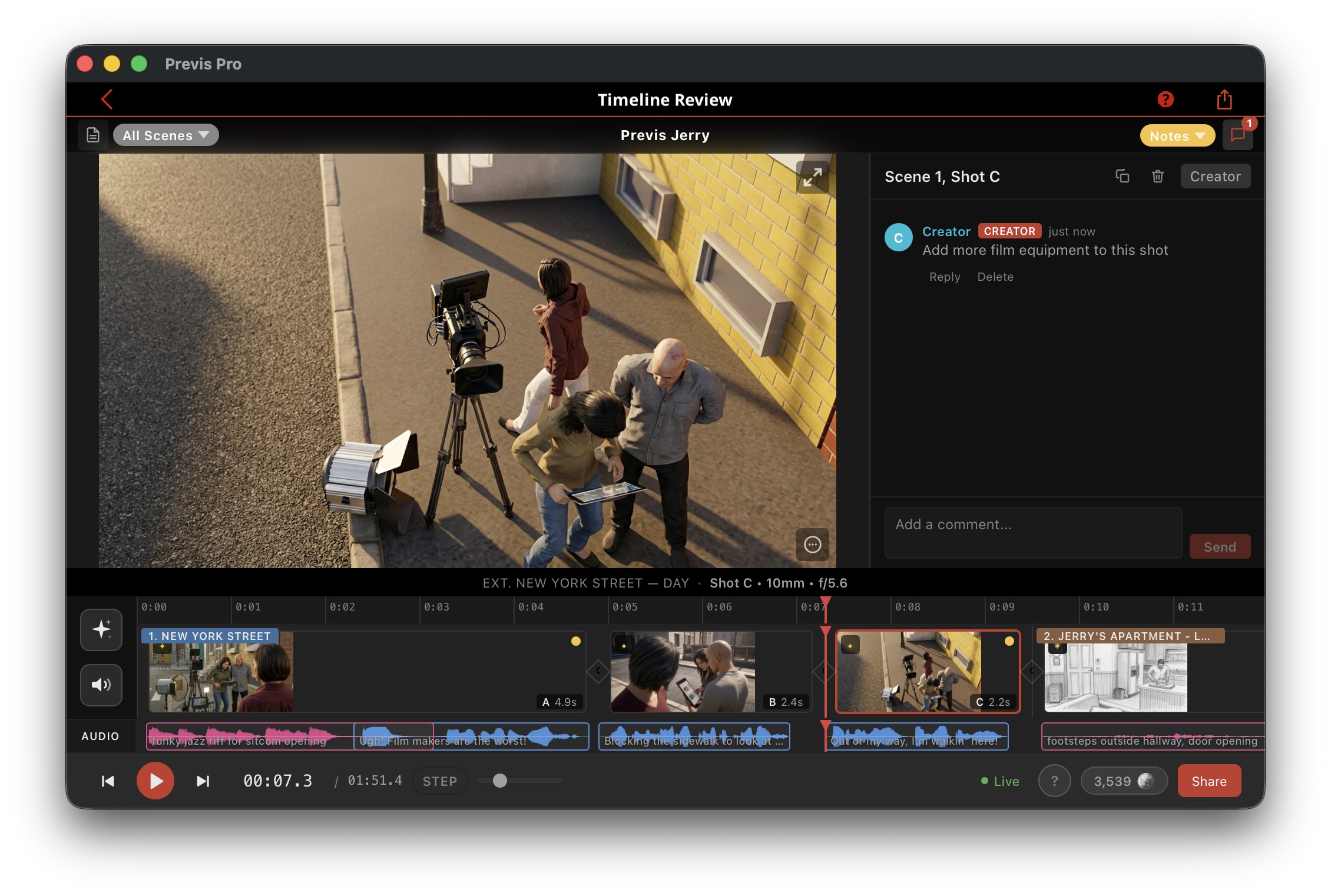
The Timeline opens when you tap a the movie clapper in the top bar. It shows your shots on a visual track with thumbnails, transitions, and audio lanes below. Use the scene selector in the top-left to switch scenes or view all scenes together.
Enhance Images
Turn any shot into an AI enhanced version, sketch, photo or anime style. Touch up to make specific changes to an image (that might be hard in 3D) or add items. Change lighting.

Drawing Annotations
To draw on a shot:Press D or click the pencil icon on the viewer. Sketch with pen, highlighter, or eraser. Your drawing attaches to the shot and is noted in the comment field. (See comments by tappting the Comment panel in the upper right or hitting 'C'.)
Audio
Four audio lanes sit below the shot track:Dialog (character speech), Music (AI-generated or imported), SFX (sound effects), and Voiceover (narration). Open the Audio Workspace with ⌥A or the speaker icon to generate AI dialogue, music, and sound effects, record with your microphone, or import files. Drag clips to reposition, trim edges, and adjust volume.
Comments are per-shot with threaded replies. Each shot shows a colored approval pill: Pending, Approved, or Notes.

Sharing
To share your project for review:Tap Share in the transport bar to create a password-protected review link. Reviewers play through your storyboard, leave comments, draw annotations, and set per-shot approval status — all in real time. Re-share anytime to sync the latest version.
Press ? anytime to see all keyboard shortcuts.

Edit Overlay
Quick tools on the viewer:Click the pencil icon in the bottom-right of the viewer to reveal Draw, Record, and Speech buttons. Click outside to dismiss. These give quick access without opening the full workspace.
- Generation History. Press H to browse every AI image, video, and audio clip you've generated. Re-apply any previous result to a shot, or delete unused assets to keep your project tidy.
- Screenplay Panel.If your project has an imported screenplay, tap the document icon (top-left) to open the script panel alongside the timeline. Dialogue, action, and transitions line up with your shots.
Playback
To play your storyboard:Hit Space to play/pause. Use J K L to shuttle backward, stop, and forward at increasing speeds. Press R to toggle step mode, which pauses at each shot boundary. Press F for fullscreen playback. All four audio lanes play simultaneously.
The Timeline brings your storyboard to life — images, video, audio, and feedback in one place.
Show, don’t tell 🎬
Here's a video showing a whole 3 shot scene being built start to finish in a few minutes, including use of the timeline.