
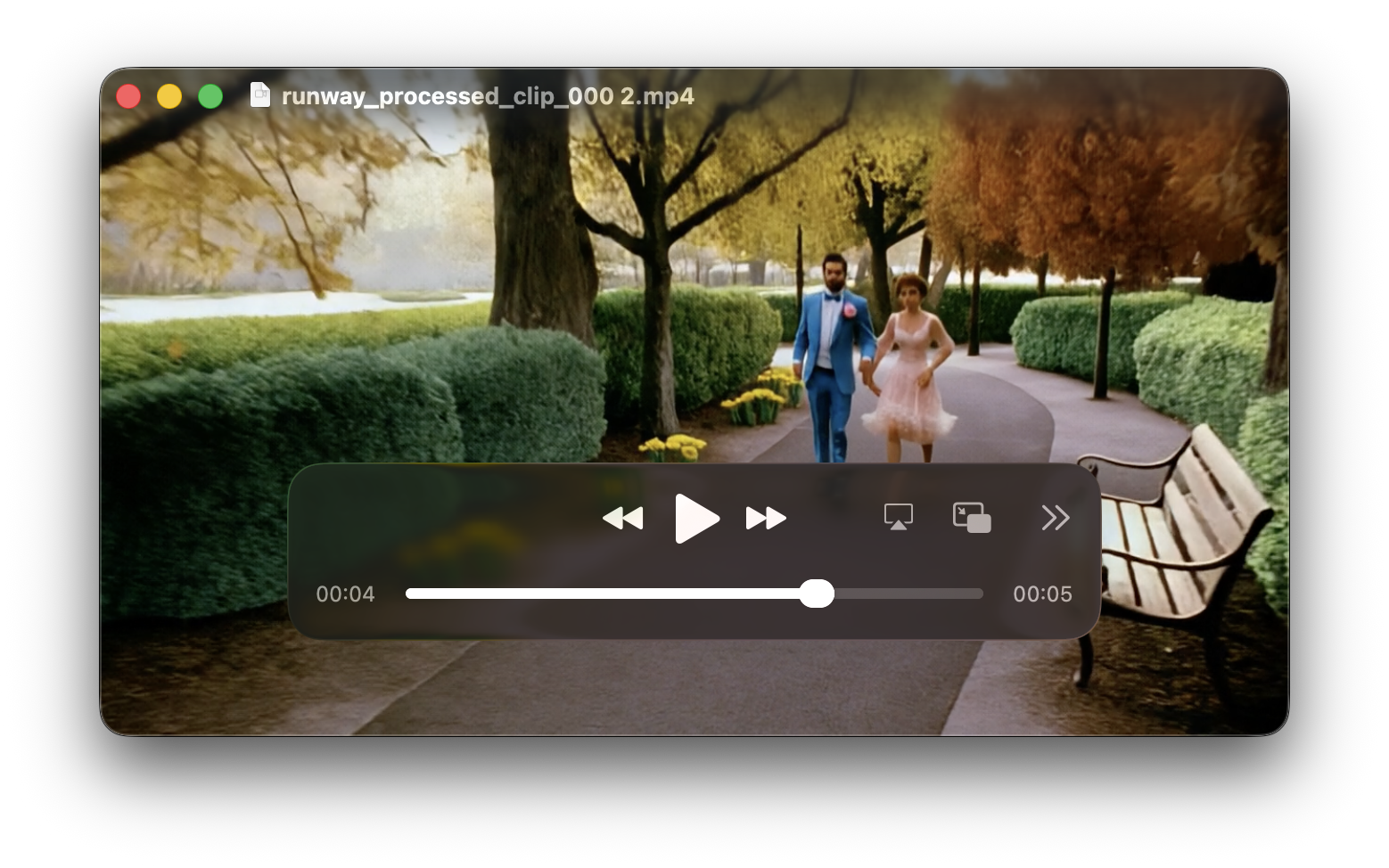
From animatic to art direction
Video Style Grade is a new feature that transforms fully animated sequences into stylized, cinematic clips using generative AI. Similar to Previs Pro’s existing Style Grade for static images, this feature enables users to render animatics in distinct visual styles – from painterly and hand-drawn looks to photorealistic previews – helping creators better communicate tone and art direction in early pre-production.
“With Video Style Grade, users can now go beyond motion,” said Ian Lynch-Smith, founder of Previs Pro. “You can visualize your entire sequence in the aesthetic of your film – from gritty realism to ink – all while keeping your camera work, timing, and direction intact. This is a unique advantage Previs Pro brings to animated AI generated video – it’s about extending creative control, not replacing it.”
About Video Style Grade
First, generating AI versions of your hand composed and blocked animatics requires the use of an external service, we use RunwayML as of Nov 2025, though this may change on the backend as the technology is moving fast. Really fast-- in many ways this is a beta. We're trying to learn and get ahead of the curve so when AI Video Gen is flexible enough (it's already incredible quality if you cherry pick your couple seconds of video!) we'll be able to add it intelligently into your Previs Pro workflow. Given the expense Video Style Grade is limited to registered customers, and at a rate of 3 generations an hour, 24 in a day. Thanks for your understanding, we'll loosen the limits or change access as we get a sense of how it's used.
How to access Video Style Grading
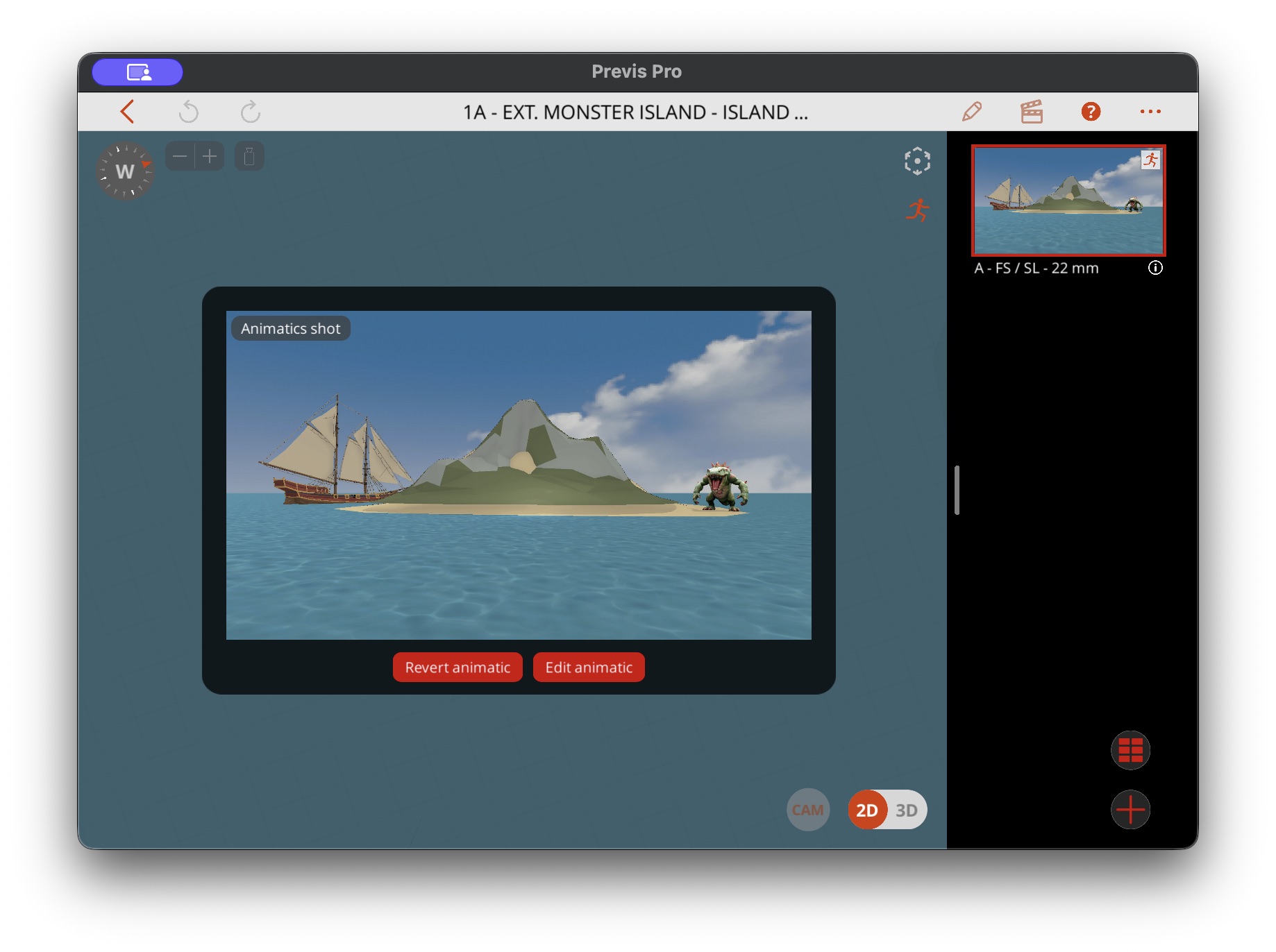
First go to an animatic shot you've already created in one of your Projects. Then select "Edit Animatic".
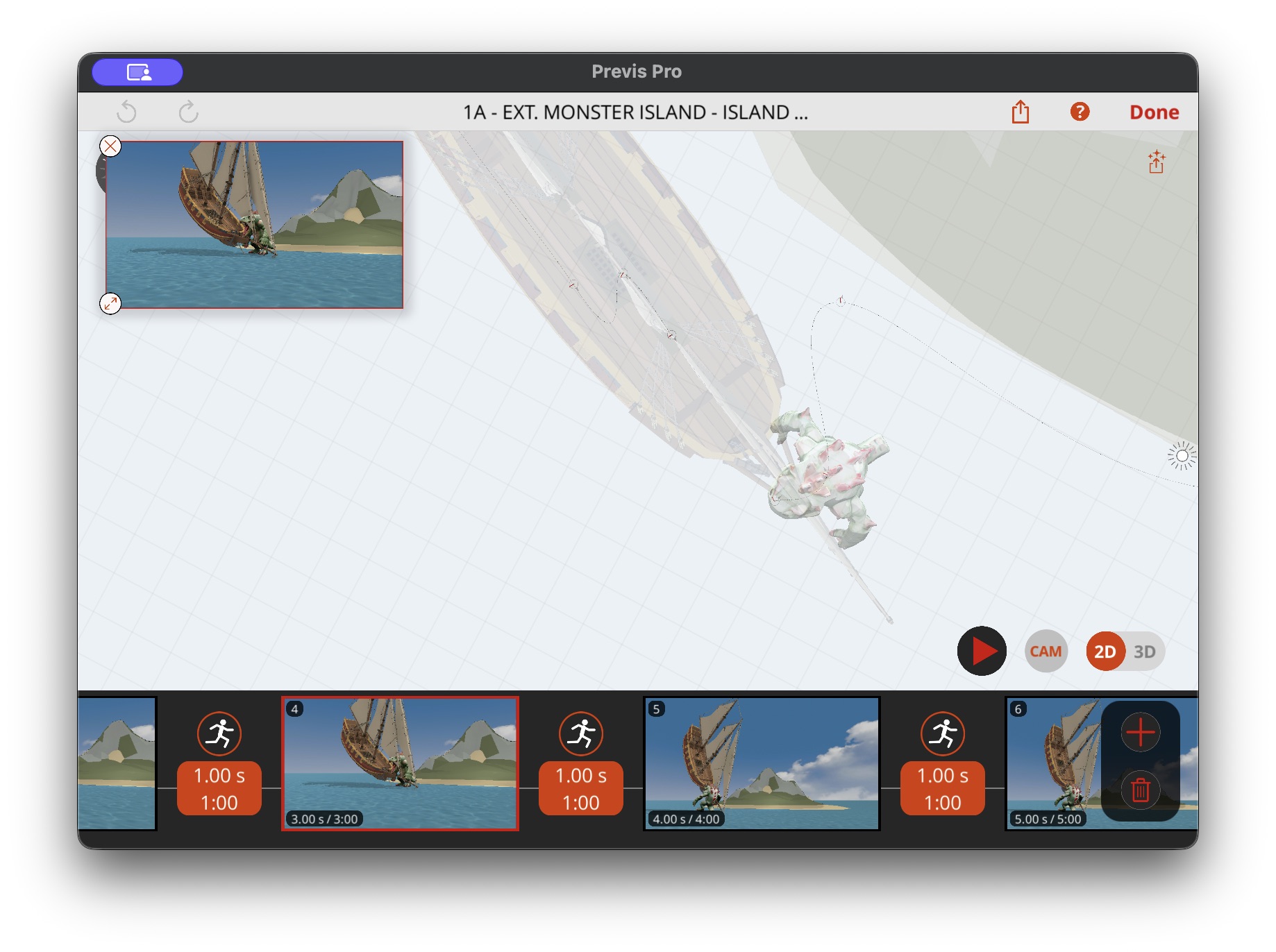
Then in the Animatic mode hit the "Video Style" icon in the upper right, directly below the Done button.

This takes you to the prompt screen. You don't have to edit it, but it directs the AI if you're looking for a specific style, or if you have people in frame and you want to make sure it has "detailed faces" for example. You can read more tips here, Video Prompting Guide.
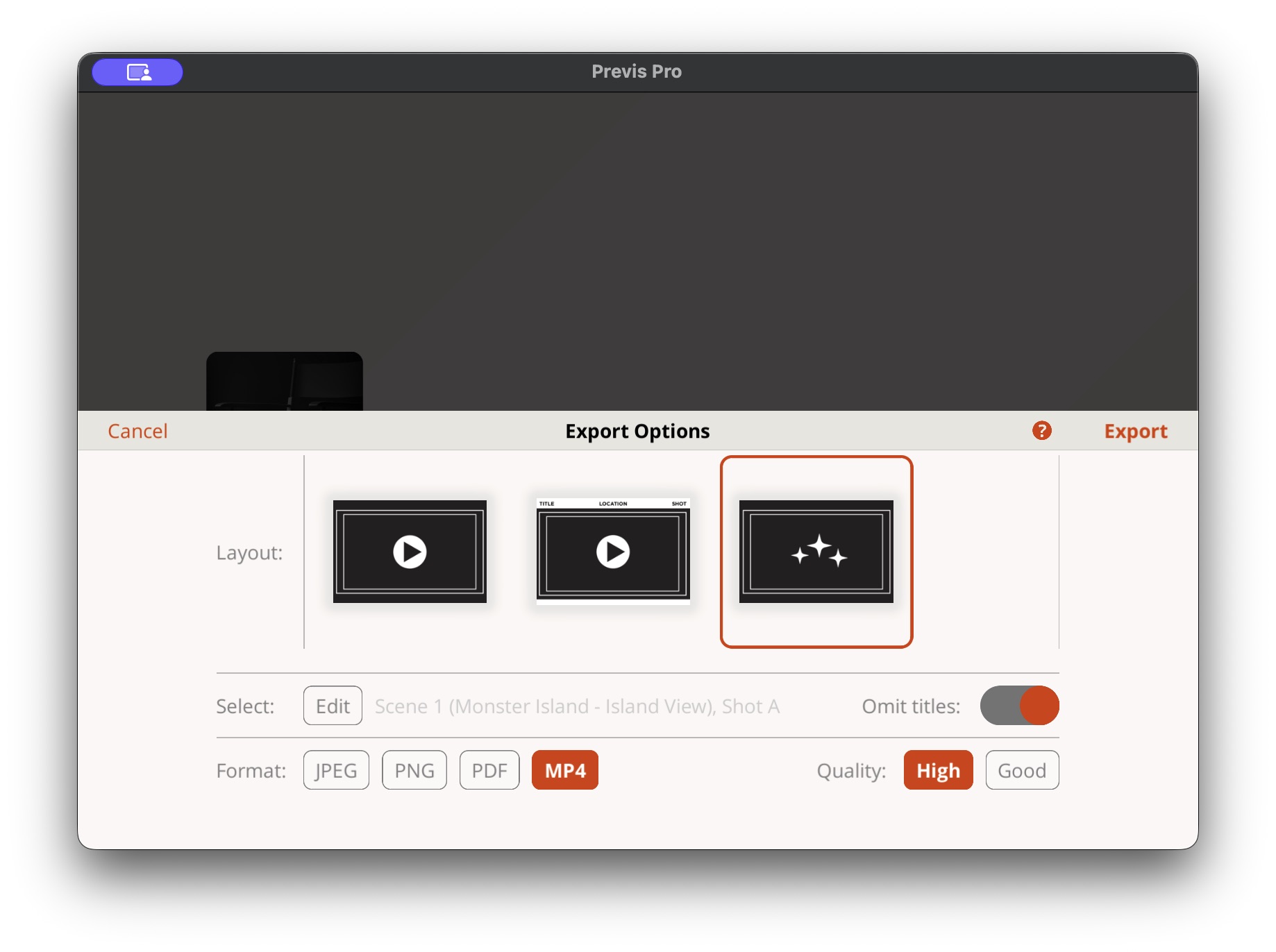
Finally in the normal export window select MP4, and the AI export. They should already be selected. Then just hit export and wait about 2-3 minutes!
Details:
Video generation is limited to 5 second sequences. If your animation is longer it will be broken up and used to generate multiple clips. In general this results in slightly worse results and eats into your hourly allotment. So while testing, or choosing which sequence to turn into a Video Style Grade, try and choose ones that are less then 5 seconds for the smoothest experience.
Finally, this is just an initial roll out, so if you have suggestions we'd love to here them. Hit us up at the contact button up top. Thank you!